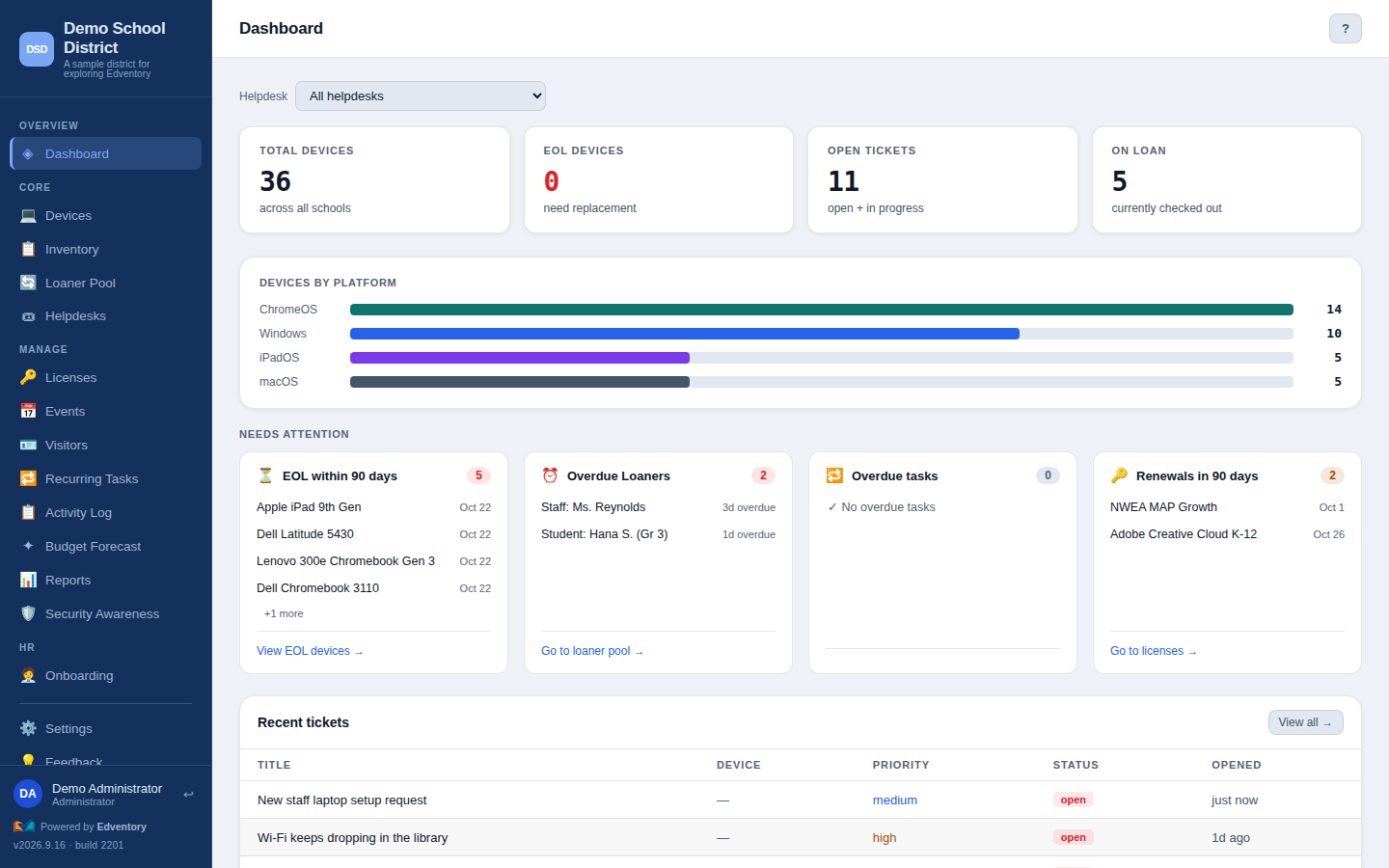
Purpose-built for how district technology teams actually work — from the device closet to the board meeting.
💻
Device inventory & lifecycle
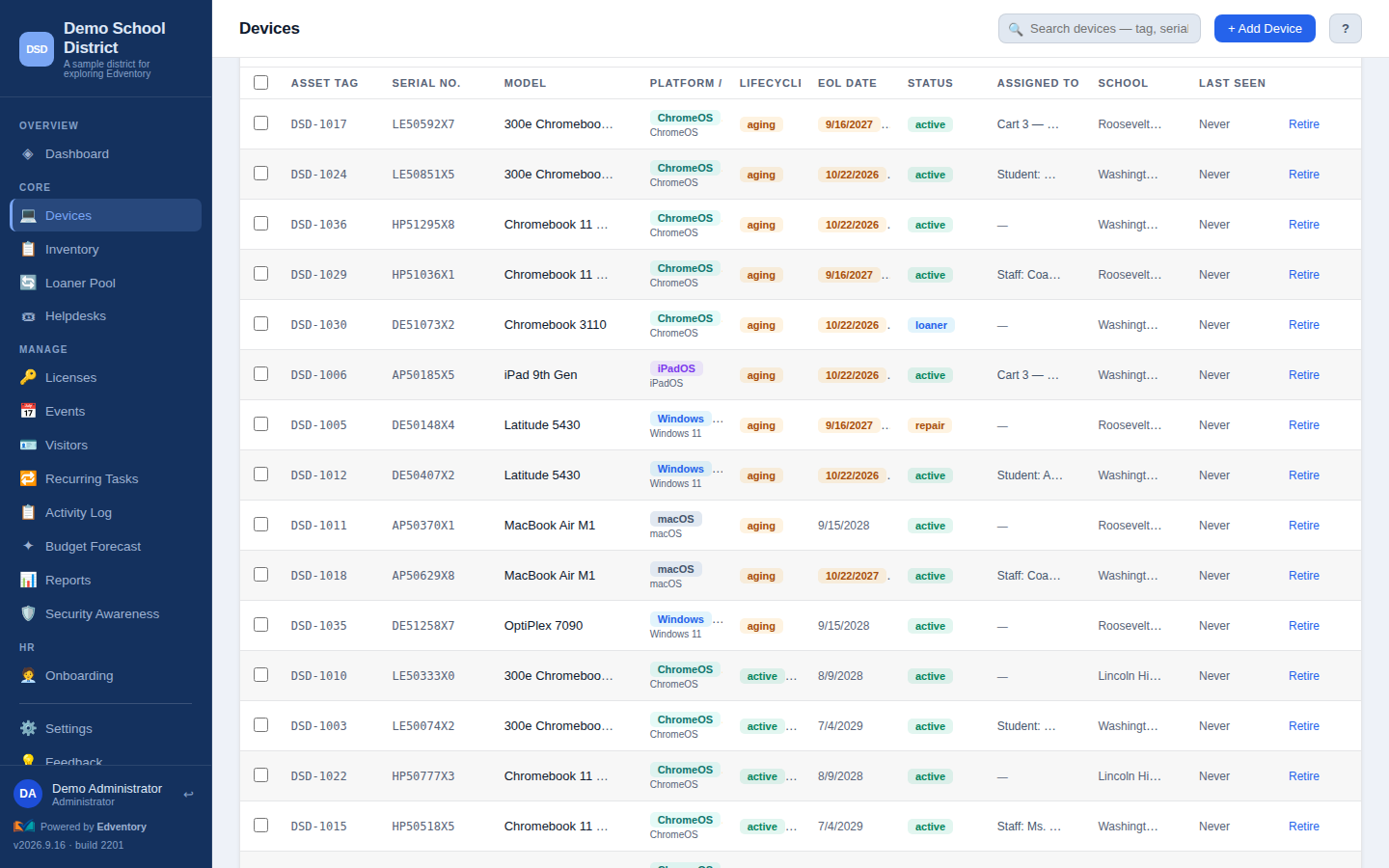
Serials, asset tags, purchase dates, warranties, and auto-computed lifecycle stages — know what's new, what's aging, and what's past its AUE date.
🔄
Google Workspace sync
Pull your entire Chromebook fleet from Google Admin automatically — serial numbers, model, OU placement, AUE dates, last check-in — and deprovision devices without leaving Edventory.
📈
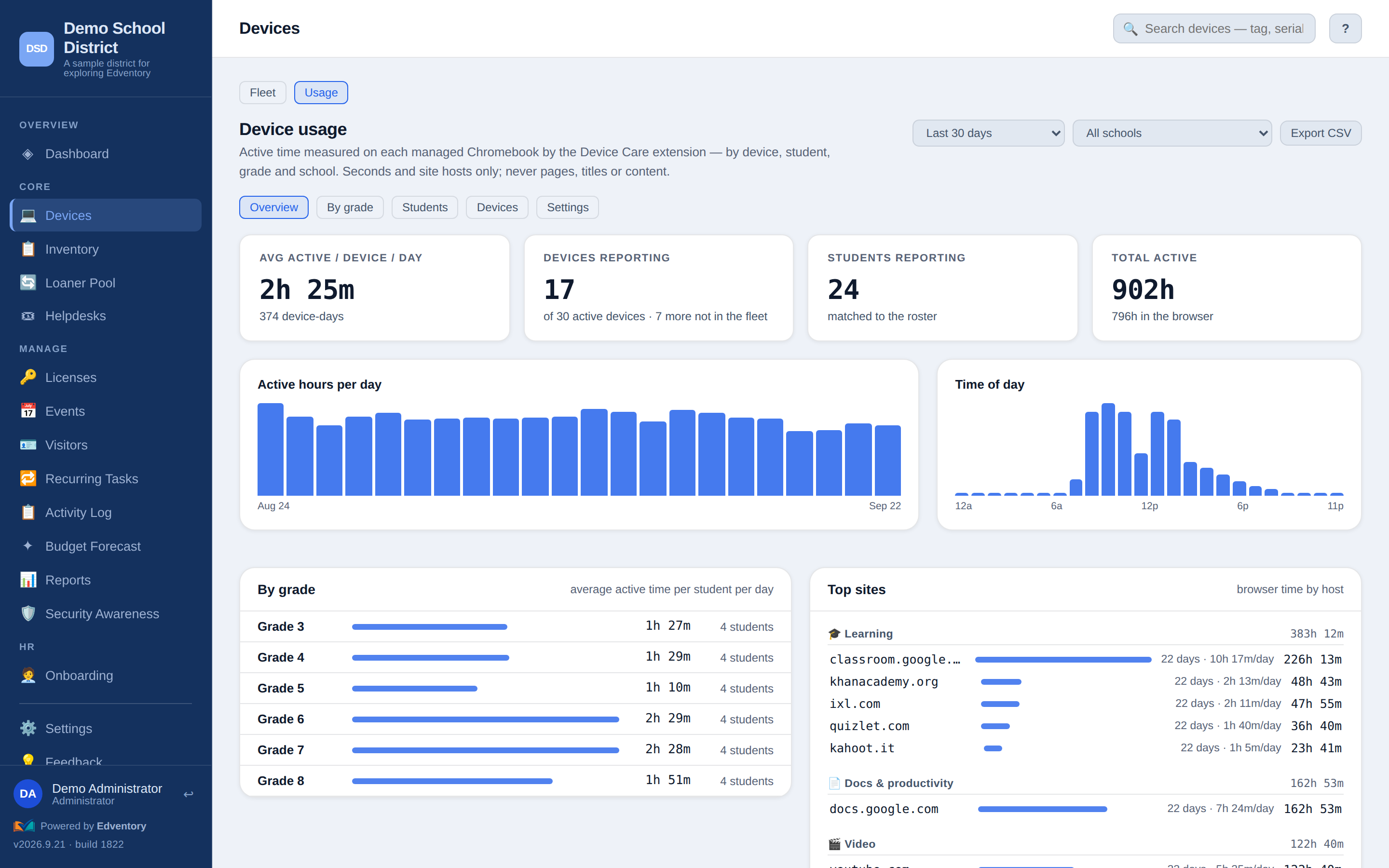
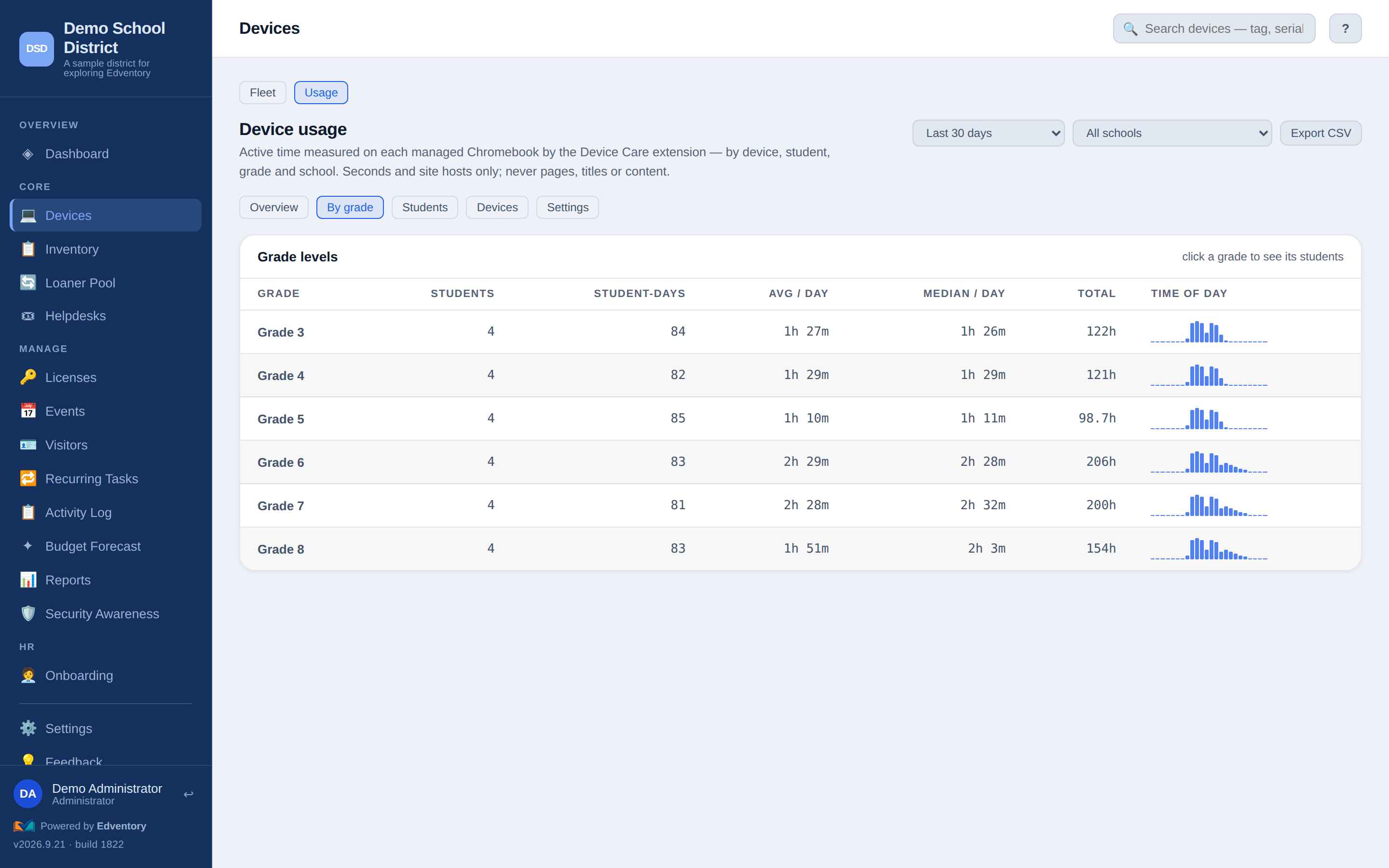
Device usage & engagement
A lightweight Chrome extension, Device Care, shows active time by device, grade, and school — so you can right-size the next refresh and spot the carts nobody uses. Usage time and site domains only, never full URLs, pages, or content.
🎫
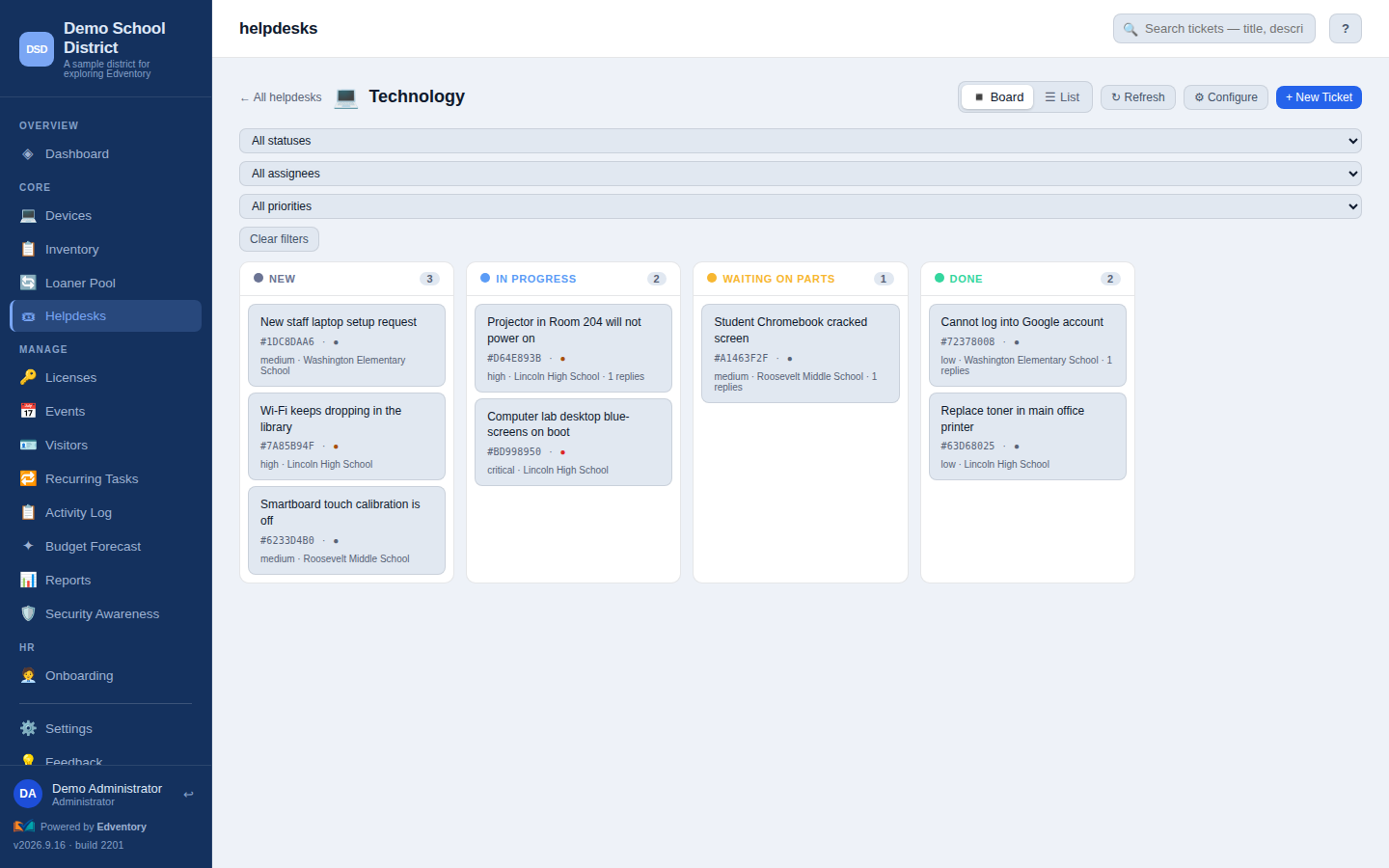
Help desks for every team
Run IT, Facilities, and HR queues side by side with custom fields and statuses. Take requests from the web, a public form, or straight from email.
🔁
Loaner management
Check devices out and in, track condition, and see what's due back — no more guessing where the loaner pool went.
🔑
License tracking
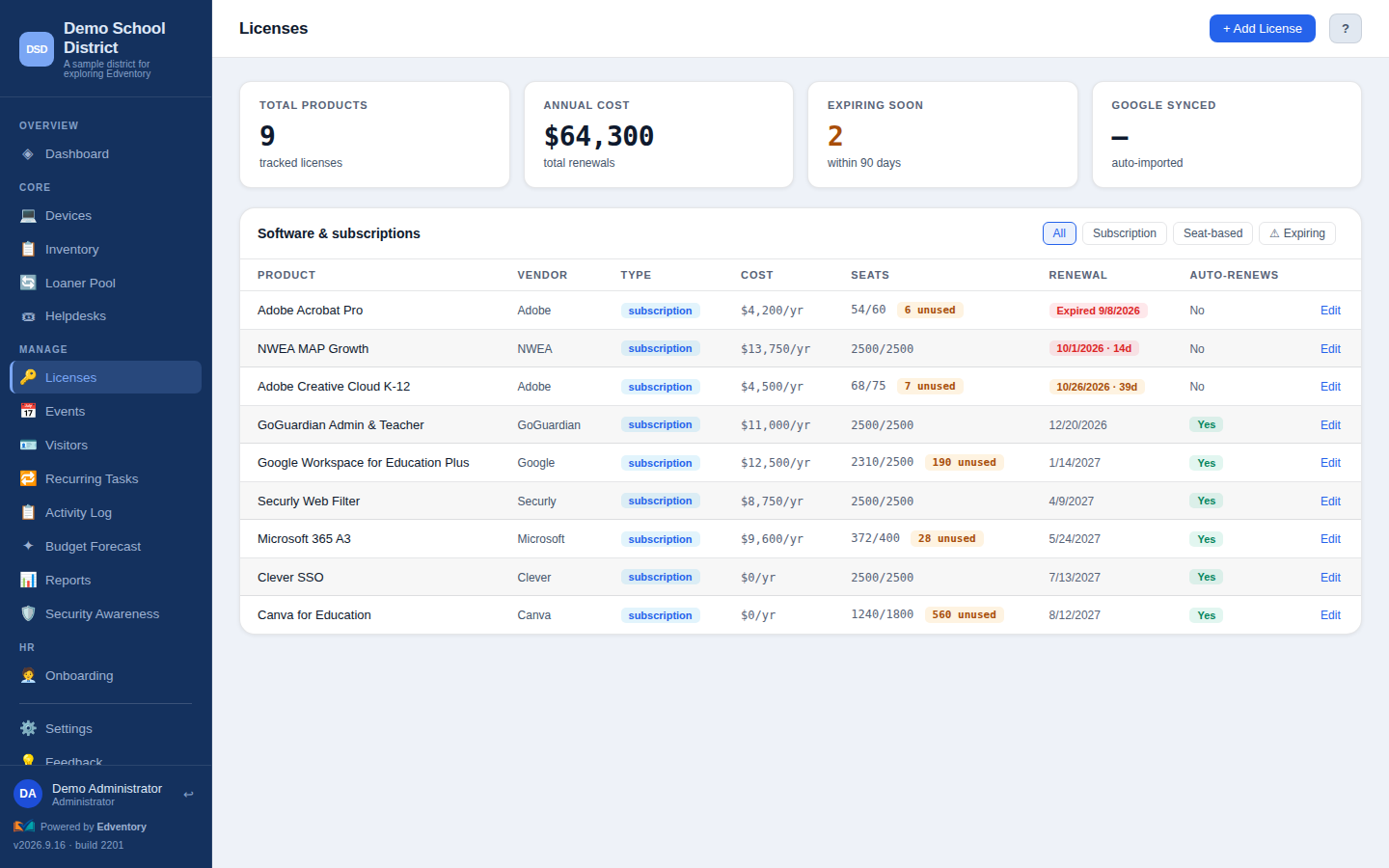
Software subscriptions, seat counts, renewal dates, and per-seat costs in one list — so renewals stop sneaking up on you.
📊
AI budget forecasts
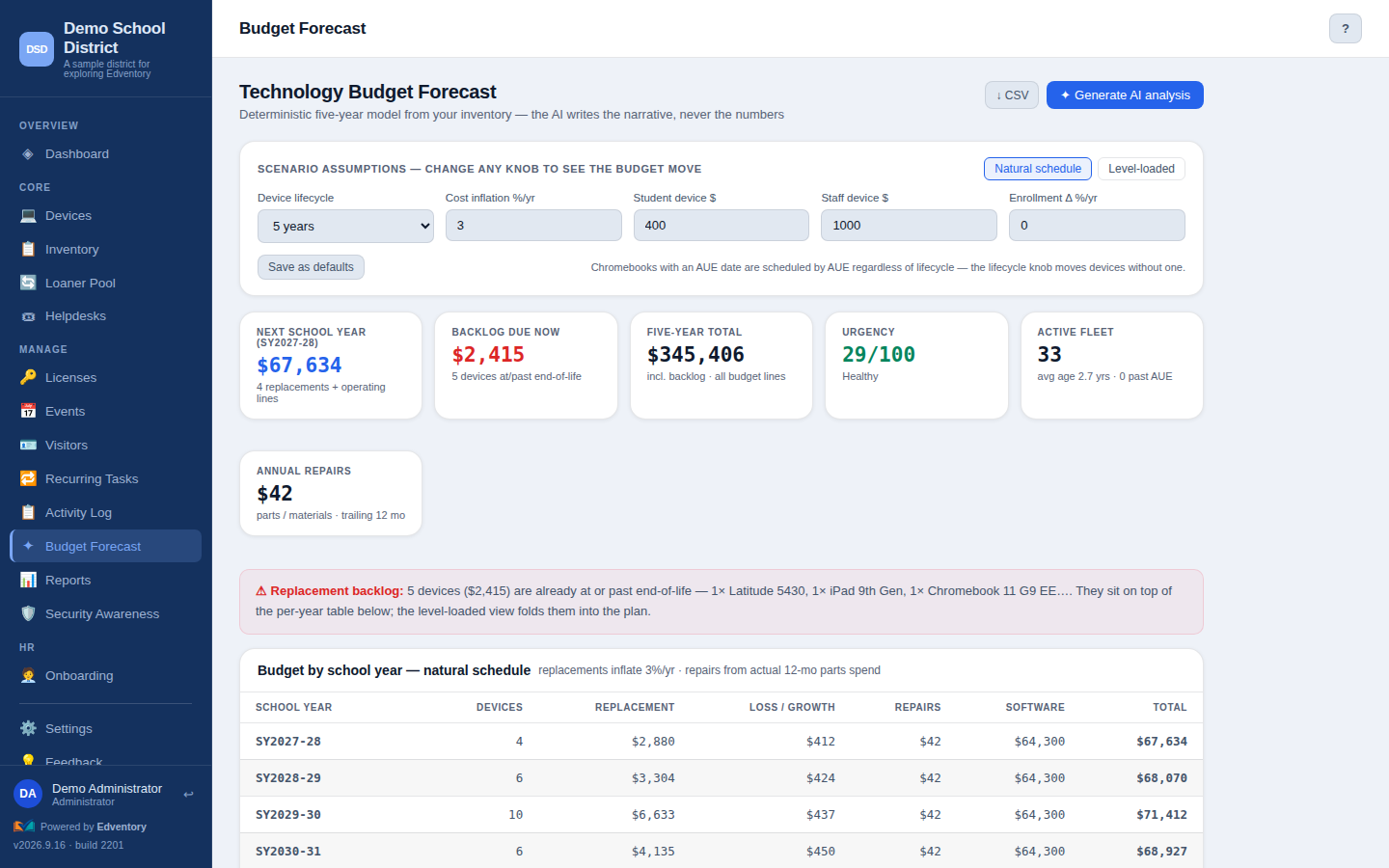
Turn your real fleet data into a board-ready, multi-year refresh plan — grounded in your device ages, AUE dates, and costs. Never invented numbers.
📷
QR self-service repairs
A student scans the label on a broken device and files the ticket themselves — no logins, no asset numbers to copy down. It arrives already linked to the right device and school.
🎒
Start & end-of-year workflows
Handout and collection days become scan-first checklists: scan devices as they move, auto-file repair tickets for damage, and export exactly who still owes a device.
📅
Facility & event requests
Staff and the public request a gym, cafeteria, or classroom through a form you control — pick the space, the dates, and the chairs, tables, and gear. You approve or deny with overlap warnings, and even sketch the room setup on a drag-to-draw seating chart.
🪪
Visitor check-in / check-out
Log who comes through the door, who they're visiting, and what ID they showed — and check them out when they leave. Every visit is timestamped and searchable, with a one-click CSV export for reports or compliance.
🛡️
Security awareness
Send realistic, simulated phishing emails to your staff and team, then turn every click into a teaching moment with bite-sized training. You see who's improving over time, and students are never targeted.
🏛
One-click board report
A print-ready summary of your fleet, spending, and what's coming due — written for a board packet, generated in one click from live data.